Blog / Imgtotext.net: The Best OCR Tool to Convert Image to Text Online
Imgtotext.net: The Best OCR Tool to Convert Image to Text Online
.webp)
We have to deal with lots of images nowadays, and some of them contain really important information in the form of text. When we try to manually write all the text word by word, it may take forever. To overcome this issue, Imgtotext.net provides a fast and reliable solution for converting images into editable text. This platform offers a dedicated online image to text conversion tool that is really easy to use.
We have written this blog to help you use this converter and easily extract text into an editable format from any image. All the important details, practical information, and useful tips are covered in this article, so you can understand how the tool performs and get the most out of it.
First Impression:
When you open the tool, the first thing you notice is its interface, which is very simple and user-friendly. It guides you step by step through the entire process. This simple approach helps even beginners use the tool without any confusion, especially if they are trying an OCR tool for the first time. This way, users can concentrate more on getting the conversions done instead of wasting time on understanding the interface.
How to Use the Image to Text Converter?
The process is very simple, such as:
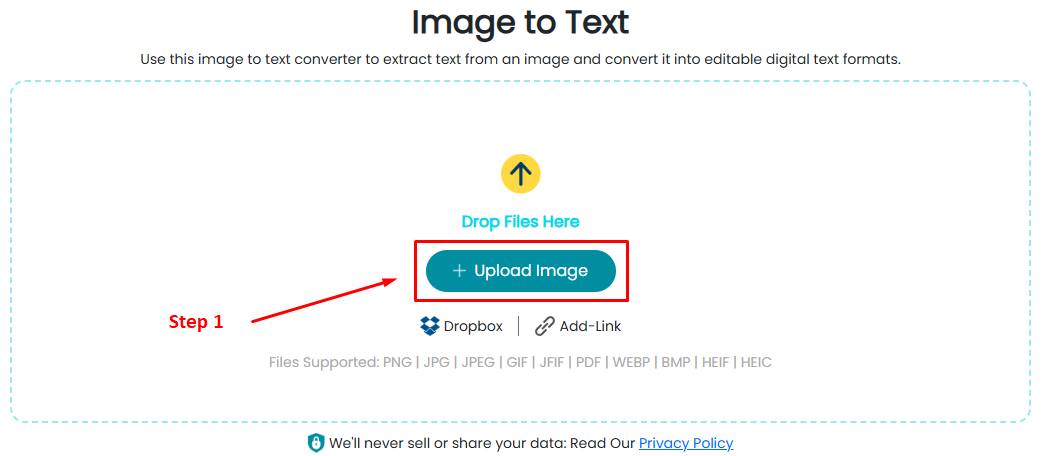
- Step 1: The user can easily upload the image from which they want to extract the text by clicking on the “Upload” button. If you have a link to the desired image, the platform also allows you to paste the link directly into the tool and convert image to text instantly.
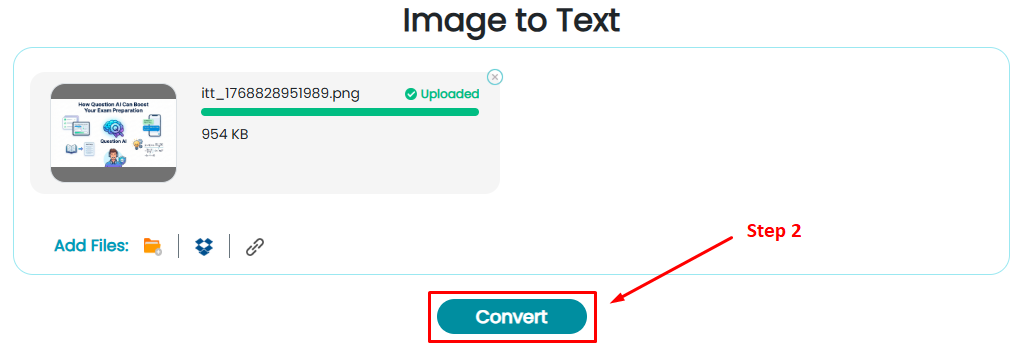
- Step 2: Once you upload the file into the tool, click on the “Convert” button to start the conversion process.
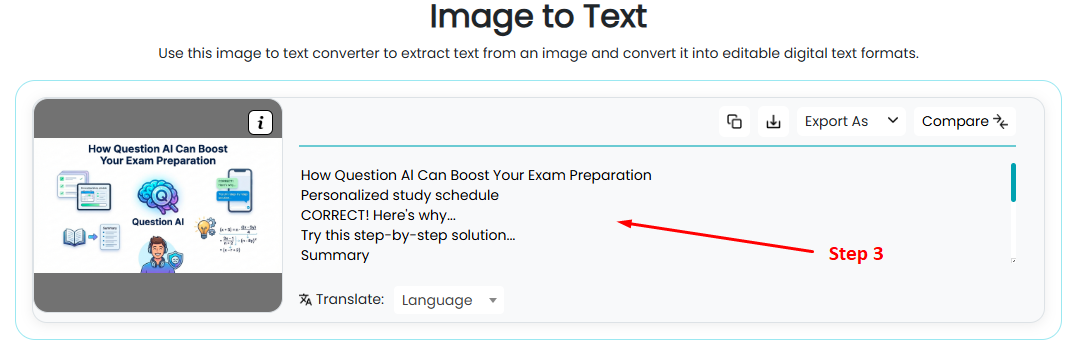
- Step 3: It will take just a few seconds. Once it’s finished, you will see all the text in editable format in front of your sceen which you can now use anywhere you want.
Key Features:
This picture to text converter includes multiple practical features. These features matter in everyday use, especially when you need quick results without extra steps:
- Support for common image formats and scanned PDF files.
- Options to download extracted text as plain text or Word documents.
- The image text extractor also keeps the basic layout intact.
- Multilingual text recognition for broader usability.
- Handwriting recognition supports in many cases, depending on image clarity
Accuracy and Performance:
The imgtotext.net performs very well when processing a wide range of documents and screenshots containing written text. Another plus point of this tool is that it accurately reads all the standard fonts and keeps the original line breaks. Which makes it very easy to edit the text as per your requirements. But in some cases, where photos are in low contrast or heavy background patterns, the accuracy drops a little bit.
This behaviour is common in most of the OCR tools, because image quality plays a very important role in text recognition. But if you have to extract the text from low-quality photos, you must upscale the image by using an online tool to enhance its quality and then use the image to text converter for more accurate results.
Privacy and Security:
A big reason I kept using this service was the privacy claim it displays: the tool says it treats uploaded images and extracted text with care and does not require any sign-ups. It also mentions that all of your data is removed from their servers right after the conversion. Due to this, you can upload any type of your data without being worried about privacy. For simple tasks like copying text from an article image or saving notes, the tool’s no-login setup keeps things quick and hassle-free.
Compatability:
This converter performs well on mobile and tablet devices, as well as on desktop computers. It is compatible with all major operating systems and modern web browsers. You don’t need to install any plugins or software to run this tool.
Best Use Cases:
This image to text extractor performs best when you upload clear, well-lit scans or screenshots. Teachers, students, and freelancers will find it very useful to capture paragraphs from lectures, extract contact details from posters, or digitize short printed pages. The combination of quick upload, visible processing, and immediate copy-to-clipboard output makes it a useful choice for small, frequent tasks. The platform also lists a blog and resources that explain common uses, which help people learn tricks to get better results.
Limitations To Keep In Mind:
No online OCR solution works perfectly in every situation. This tool also has some limits you should be aware of:
- Messy handwriting often leads to incomplete or incorrect results
- Images with heavy design elements can confuse text recognition
- Complex tables and structured layouts may lose formatting
- Very large or bulk uploads may hit browser or file size limits
Pricing:
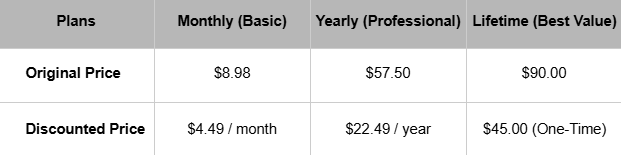
Our free/basic version already includes some useful premium features. But if you need more capacity and speed, we offer three paid plans with big discounts. So, you can pick what fits you best.
Comparison With Other Tools:
Compared with full-featured desktop OCR software, this online photo to text converter offers advanced layout controls for speed and simplicity. Compared with other quick web tools, it performs well on clean images and offers multiple export formats, including TXT, DOCX, PDF, XLSX, and CSV. If you want a small, browser-based OCR converter that works without installing anything, Imgtotext.net fits that role well and does it in a way that beginners can understand and apply.
How To Get The Best Results:
To improve accuracy, crop the image so the text fills most of the frame, increase contrast if possible, and use a straight-on photo rather than a steep angle. For printed materials, scan at a higher resolution. For handwritten notes, write clearly and avoid overlapping lines. With a little preparation, you can reduce the time spent fixing recognition errors and make the output ready to use.
Final Verdict:
If you want to convert image to text quickly but don’t want to be involved in any complex settings or installation, this platform is really a great option. It also guides you through every step of the conversion and gives results with high accuracy. Due to this, most of the users, including myself, love to use it.



 Upgrade